Xero: send and receive UAE e-invoices with InvoiceNET
Connect Xero, sync invoices and credit notes, add the unit code and tax category, send and track them to the FTA, and post supplier e-invoices back to Xero as bills.
If your business invoices in Xero, InvoiceNET for Xero turns your Xero invoices into UAE e-invoices and sends them through InvoiceNET. It also brings the e-invoices your suppliers send you back into Xero as bills. You keep invoicing in Xero as you do today. InvoiceNET adds the fields Xero does not hold, checks the invoice and sends it.
Watch: the whole flow in under three minutes
The video has no sound. It shows: connecting Xero, creating and approving an invoice in Xero, syncing it into InvoiceNET, sending it, and tracking it to the FTA.
How it works
| Direction | In Xero | In InvoiceNET | Result |
|---|---|---|---|
| Sales (outbound) | Create and approve the invoice or credit note | Sync from Xero, complete the missing fields, Send to ASP | Delivered to the buyer over Peppol and reported to the FTA |
| Purchases (inbound) | A bill appears, ready for payment | Sync from ASP, map the supplier and products, Post to Xero | The supplier's e-invoice becomes a Xero bill |
Before you start
- Your business is linked to Citytech as its ASP in EmaraTax (see Link your business to an ASP)
- You can sign in to Xero for the organisation you invoice from
- Your Xero contacts have the customer's TRN and address, with the emirate
- You know each customer's Peppol ID (
0235:followed by their 10-digit TIN)
Your Citytech team sends you the sign-in link for InvoiceNET for Xero.
Step 1: Connect your Xero organisation
- Open InvoiceNET for Xero and click Connect Xero to get started.
- Sign in with your Xero account. Xero may ask you to set up multi-factor authentication first.
- On the Xero consent screen, pick the organisation(s) to connect and click Allow access (or Continue with N organisations).
- On Select a Company, choose the organisation to work with. Use Connect another Xero company to add more. You can change it later with Switch company at the top of every page.
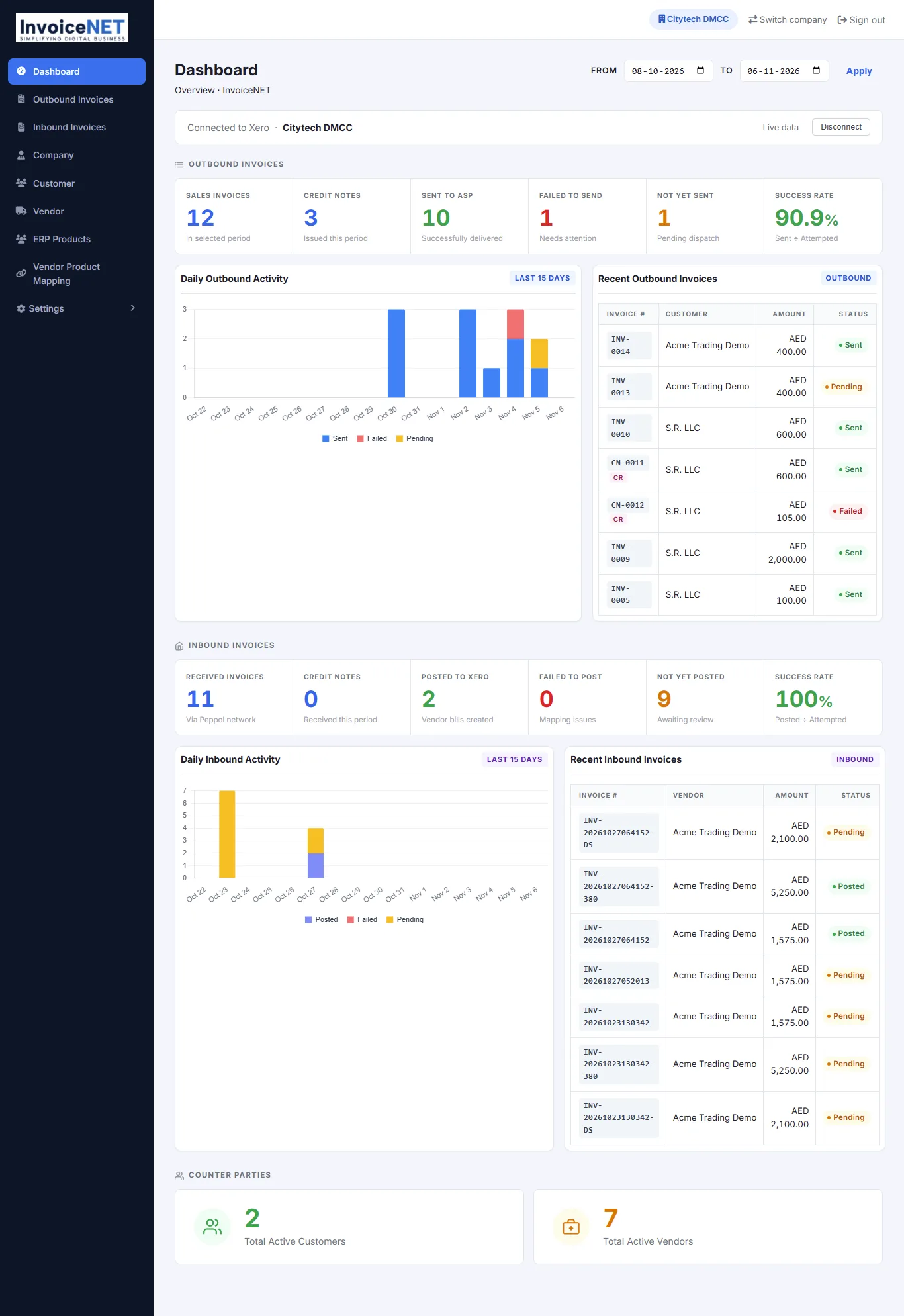
The dashboard then shows Connected to Xero · your organisation and Live data. Disconnect removes the link to Xero.
Step 2: Check your company and customer details
Open Company and Customer in the left-hand menu and complete what Xero does not hold:
| Field | Business term | What to enter |
|---|---|---|
| TRN | IBT-031 / IBT-048 | 15 digits, starts with 1, ends with 03 |
| Endpoint ID and Endpoint scheme | IBT-034 / IBT-049 | The 10-digit TIN with scheme 0235, or a predefined receiver for special cases |
| Reg. scheme and Authority name | BTAE-15 / BTAE-11 | The registration type (trade licence, Emirates ID…) and who issued it |
| Country subentity | IBT-039 / IBT-054 | The emirate |
| UAE buyer — not yet onboarded on Peppol | — | Tick it when a UAE customer has no Peppol ID yet. The invoice then goes to the predefined receiver 0235:9900000098 |
Company and customer records are shared masters: a change applies to every invoice for that seller or customer.
Step 3: Create and approve the invoice in Xero
Create the invoice in Xero as usual (Sales › Invoices › New invoice): contact, issue and due date, invoice number, items, account and tax rate. Click Approve (or Approve & email). Credit notes work the same way.
Step 4: Sync it into InvoiceNET
In InvoiceNET, open Outbound Invoices and click Sync from Xero (Invoices & Credit Notes). A message confirms how many invoices and credit notes were synced. New ones appear with status Not sent.
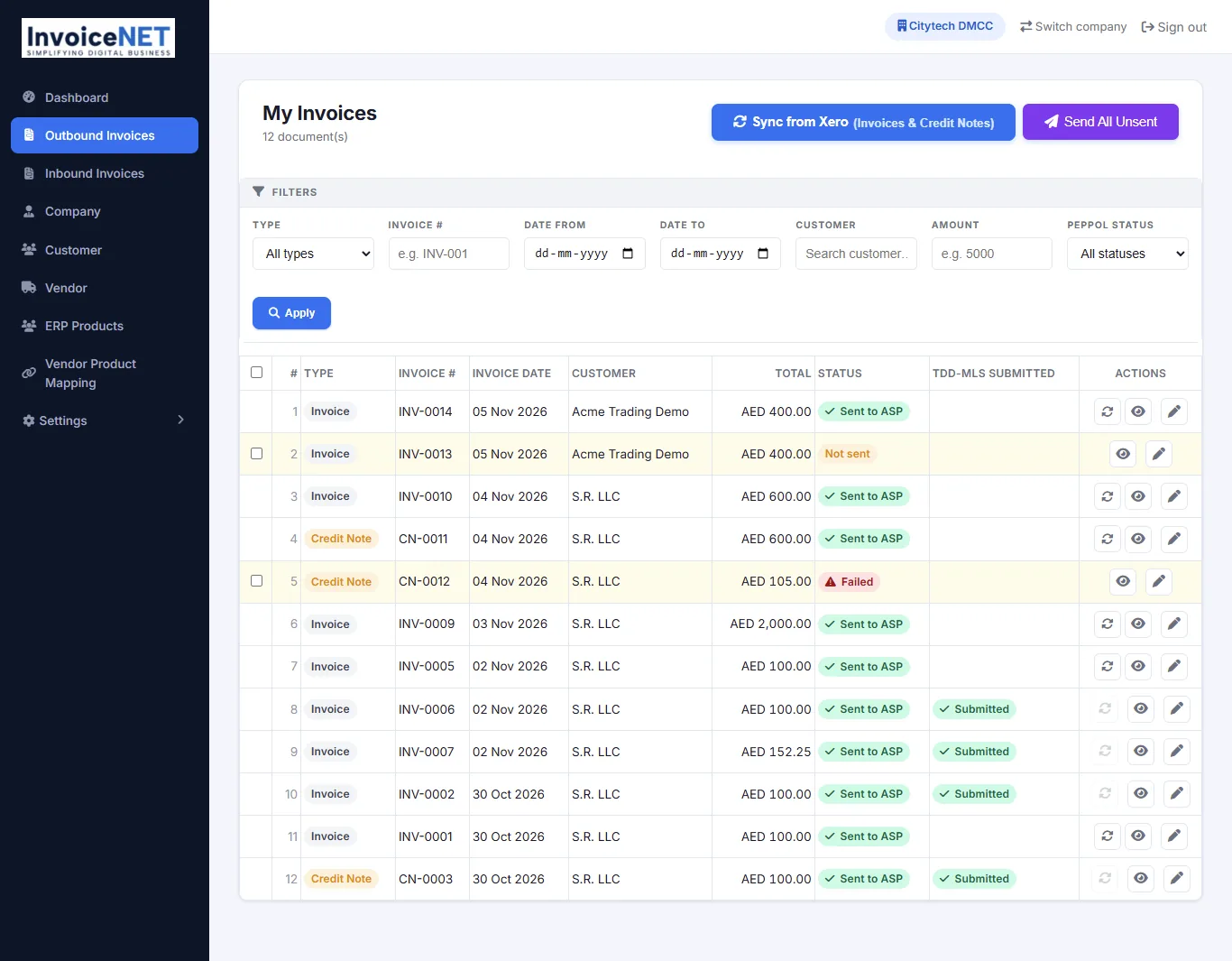
You can filter by type, invoice number, dates, customer, amount and Peppol status.
Step 5: Complete what Xero does not provide
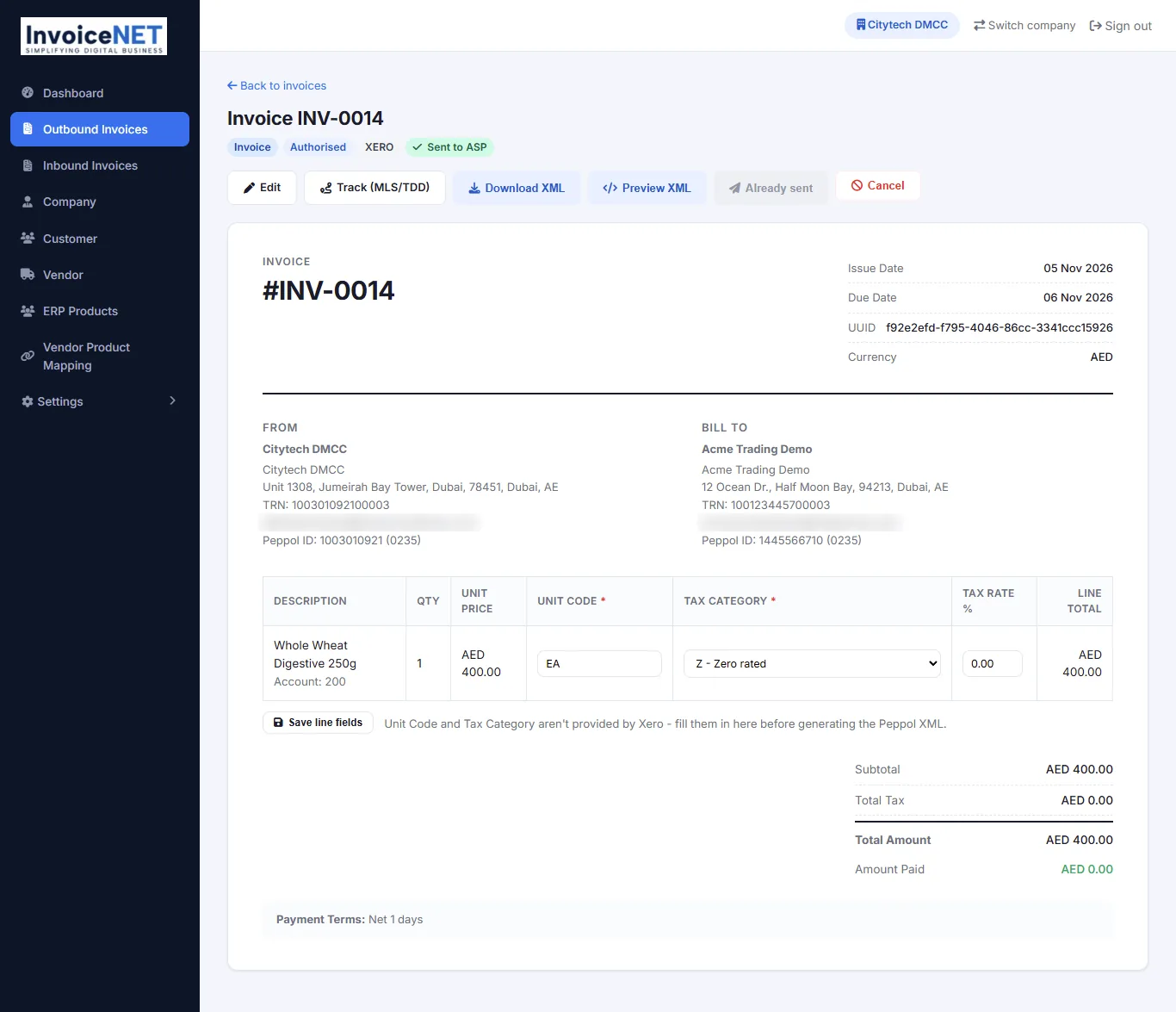
Open the invoice (eye icon). Xero does not provide the Unit Code or the Tax Category, so set them on each line, then click Save line fields:
- Unit code: a UN/ECE Rec 20 code such as
EA(each),H87(piece) orHUR(hour). - Tax category: match the Xero tax rate on the line:
Sfor 5% VAT,Zzero-rated,Eexempt,Oout of scope,AEreverse charge. See tax categories.
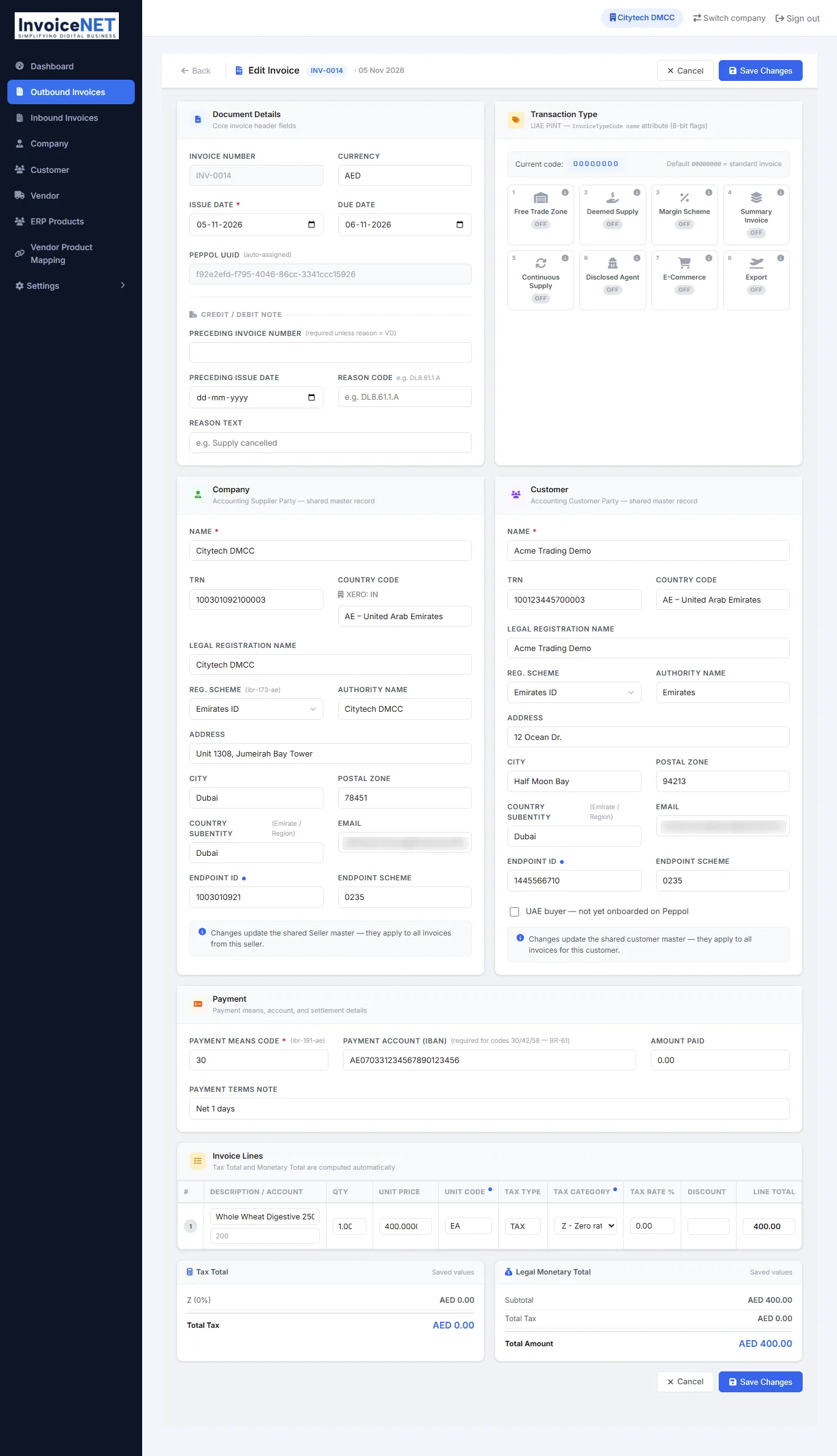
For anything else, click Edit. The edit page has:
- Document details: issue and due date, currency. The Peppol UUID is assigned automatically.
- Credit / debit note: the preceding invoice number and date, a reason code such as
DL8.61.1.Aand the reason text. The preceding invoice is required unless the reason isVD(volume discount). See Credit notes. - Transaction type: the eight UAE flags (free zone, deemed supply, margin scheme, summary invoice, continuous supply, disclosed agent, e-commerce, export). All off gives
00000000, a standard invoice. See Transaction type code. - Company and Customer: the seller and buyer details from Step 2.
- Payment: payment means code (for example
30credit transfer), the IBAN (required for codes 30, 42 and 58), amount paid and payment terms. - Invoice lines: description, quantity, price, unit code, tax category, rate and discount. Totals are calculated for you.
Click Save Changes when done.
Step 6: Send it
On the invoice, click Send to ASP, or on the list click Send All Unsent to send every complete invoice at once. Preview XML and Download XML show the e-invoice exactly as it will be sent.
The status then changes:
| Status | Meaning | What to do |
|---|---|---|
| Not sent | Synced from Xero, not yet sent | Complete the lines and send |
| Sent to ASP | InvoiceNET accepted it for delivery | Nothing, follow it in tracking |
| Failed | It could not be sent | Open it, fix the data and send again. See Top rejection reasons |
| Submitted (TDD-MLS column) | The tax report has been submitted to the FTA | Nothing |
Once sent, an invoice cannot be changed: correct it with a credit note in Xero.
Step 7: Track delivery and FTA reporting
Click Track (MLS/TDD) on the invoice. The tracking page shows:
- Delivery status: delivered or not, the current phase, and the supplier and customer Peppol IDs.
- UAE Tax Data Document (TDD): the report sent to the FTA and its status.
- Corner-by-corner status (C1–C5): C1 submitted by you, C2 validated, C3 received by the buyer's provider, C4 the buyer's acknowledgement (MLS), C5 reported to the FTA. C5 REPORTED with acknowledgement
APmeans the FTA has approved the report. - Processing timeline: each step with its time.
- Artifacts: the payload, envelope (SBDH), delivery receipt (MDN) and TDD, for your records.
C4 can stay Pending for a while: it waits for the buyer's system to acknowledge. That does not affect FTA reporting. See Document status.
Supplier invoices into Xero
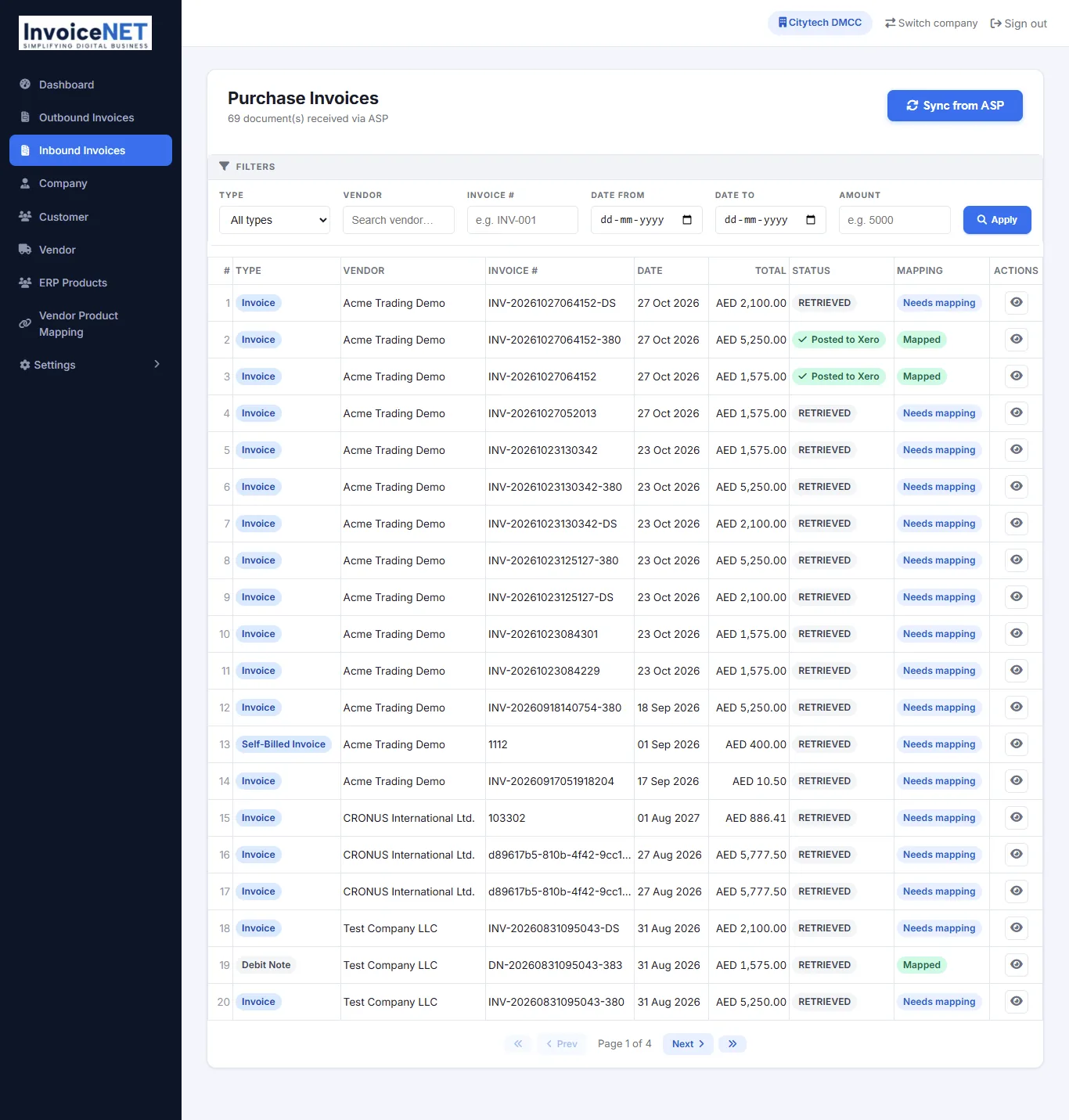
- Open Inbound Invoices and click Sync from ASP. Supplier e-invoices appear with status RETRIEVED.
- The Mapping column shows Needs mapping until the supplier and its products are matched to your Xero records.
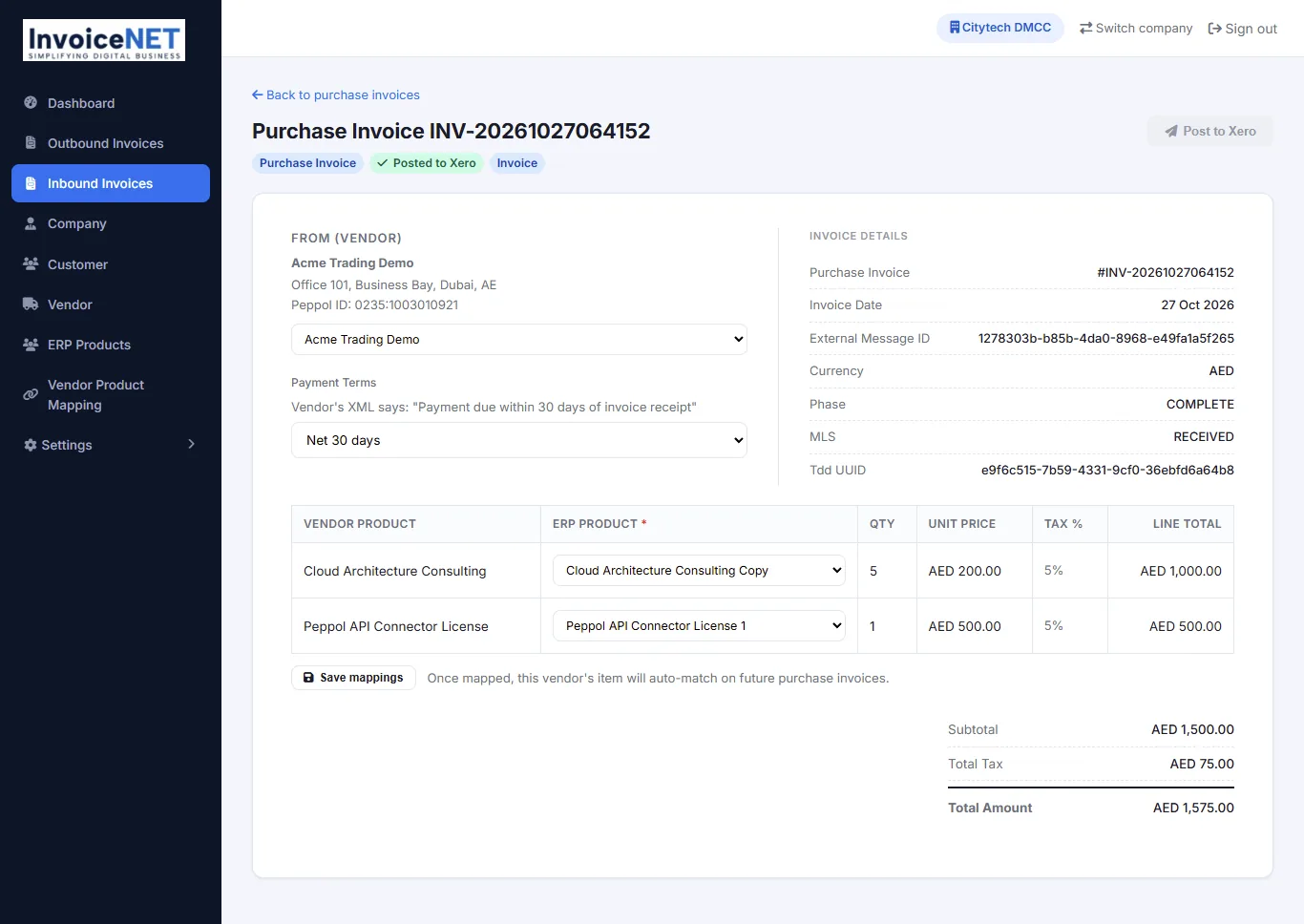
- Open the invoice. Choose the matching vendor and payment terms (the supplier's own terms are shown for reference), and pick the ERP product for each supplier product line. Click Save mappings. Next time, this supplier's items are matched automatically.
- Click Post to Xero. The status changes to Posted to Xero and the bill appears in Xero, ready for approval and payment.
Check the supplier, amounts and VAT before posting. For reverse-charge (AE) lines you account for the VAT yourself.
Other menus
| Menu | What it is for |
|---|---|
| Dashboard | Counts for the period: sales invoices, credit notes, sent, failed, not yet sent; received, posted to Xero, failed to post, awaiting review; success rates and active customers and vendors |
| Company | Your seller details (Step 2) |
| Customer / Vendor | Your customers' and suppliers' e-invoicing details |
| ERP Products | Your Xero items, used when mapping supplier lines |
| Vendor Product Mapping | Saved matches between supplier items and your items. Edit or remove them here |
| Settings › Xero Credentials | The Xero connection |
| Settings › Switch Company | Work with another connected Xero organisation |
Common questions
Do I need Xero for UAE e-invoicing? No. Xero is not required. If you use other accounting software, see the ERP guides or talk to us about the InvoiceNET portal.
Does Xero on its own make me compliant? No. Xero holds the invoice, but a UAE e-invoice also needs the PINT AE format, the extra mandatory fields, validation, Peppol exchange through an accredited service provider, and reporting to the FTA. InvoiceNET for Xero adds those.
Why is my synced invoice "Not sent"? It is waiting for you. Open it, set the unit code and tax category on every line, then send it.
Why does a supplier invoice say "Needs mapping"? InvoiceNET does not yet know which of your Xero vendors and items it matches. Map it once; future invoices from that supplier match automatically.
I need to correct an invoice. What now? Before it is sent, correct it in InvoiceNET with Edit. After it is sent, issue a credit note in Xero, sync it and send it.
Need help setting up? Contact our team.