Link your business to an ASP in EmaraTax (onboarding)
The first step before you can send e-invoices: link your entity to Citytech as your ASP in EmaraTax. Six steps with screenshots.
Before you can send or receive e-invoices, your business has to be linked to an Accredited Service Provider (ASP) in EmaraTax. You start on EmaraTax, it sends you to your ASP's page to verify, and the result goes back to EmaraTax automatically. It takes about 10 minutes.
Watch: the whole process in one minute
Before you start
Tick these off before you begin:
- I can log in to EmaraTax for this entity (UAE PASS or EmaraTax login)
- The entity is VAT-registered
- I have the entity's TIN to hand
- I know the email address linked to the Taxable Person in EmaraTax
The email is where most people get stuck. The email linked to the Taxable Person is often not the email you log in with. If you're not sure which one it is, check with whoever registered the entity before you start.
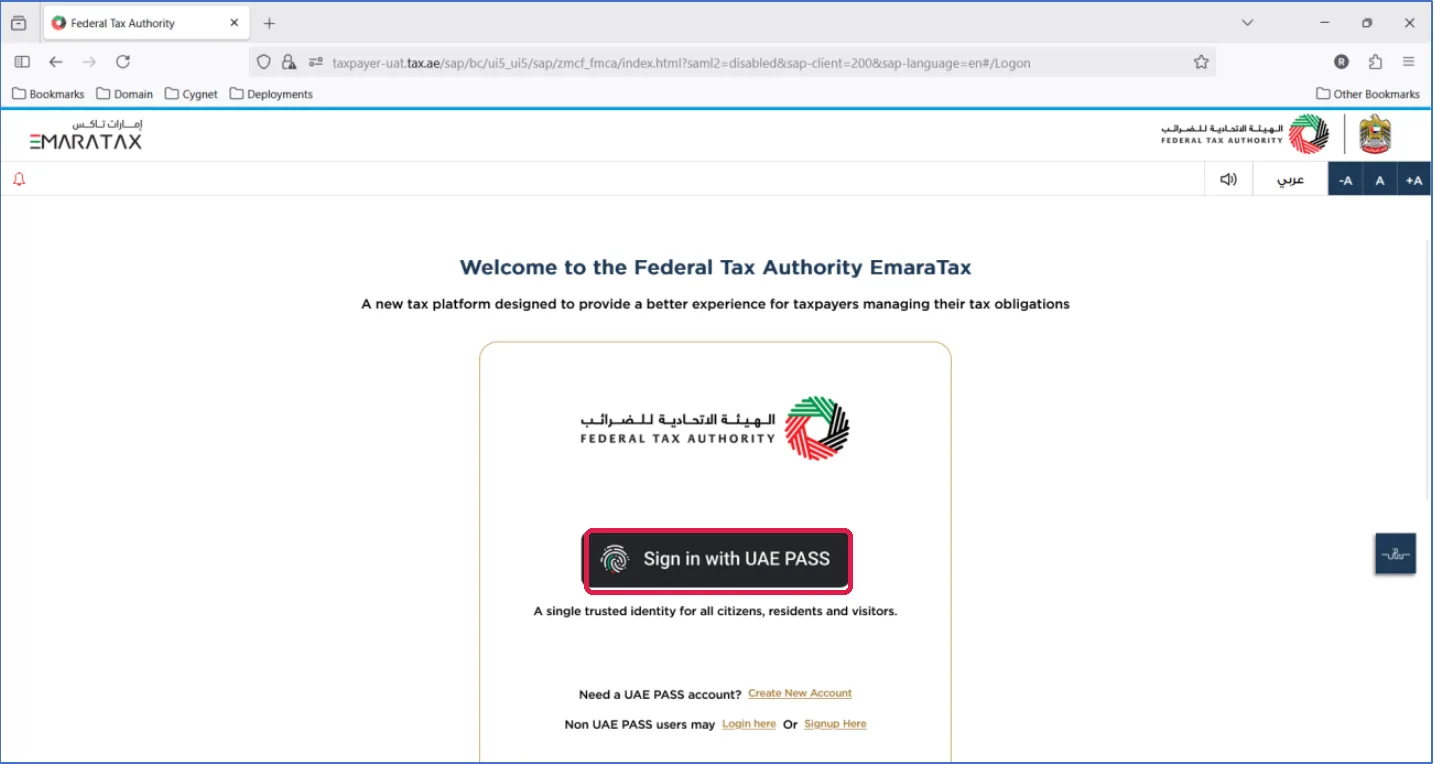
Step 1: Sign in to EmaraTax
Sign in to the EmaraTax portal. You'll see the list of taxable persons linked to your user.
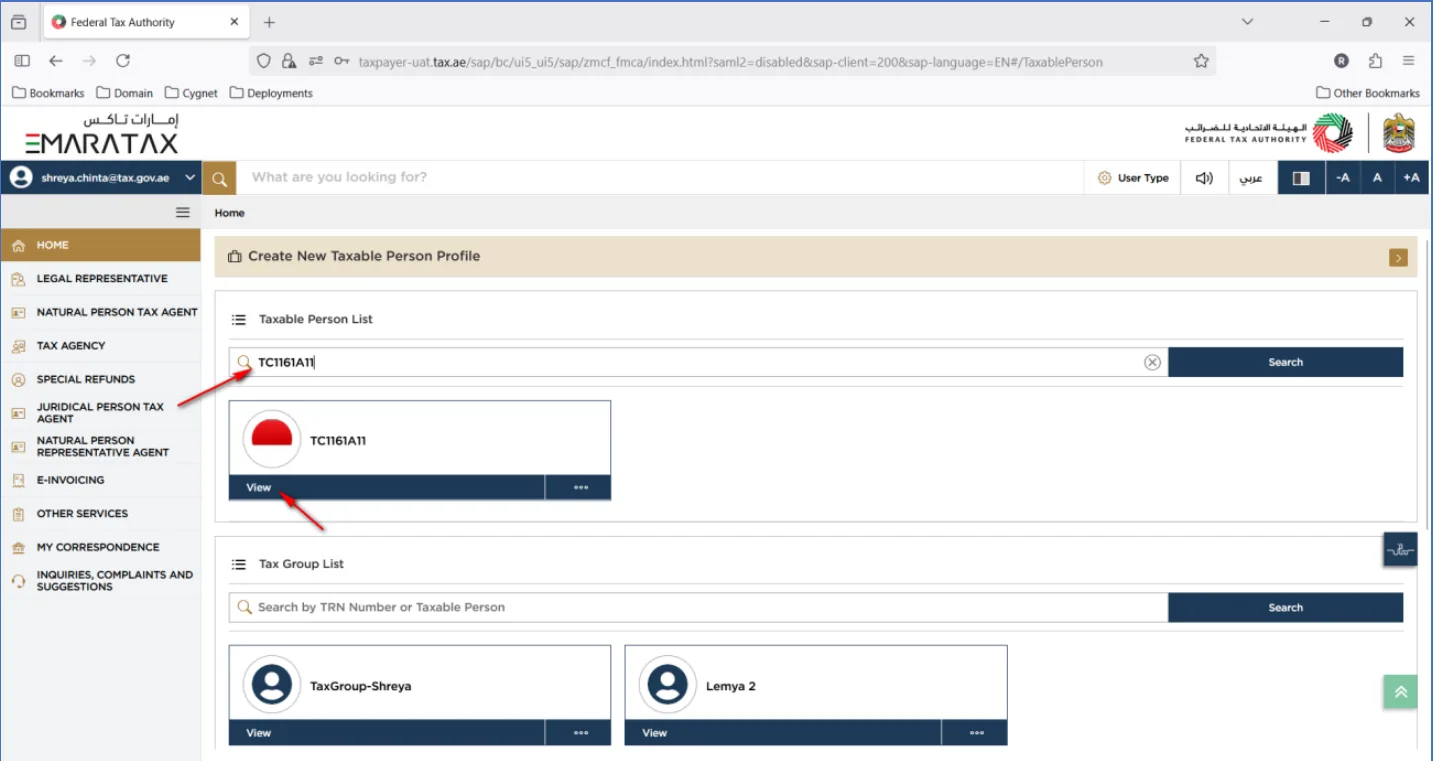
Step 2: Open your entity
In Taxable Person List, search by entity name or TIN. When your entity appears as a card, click View.
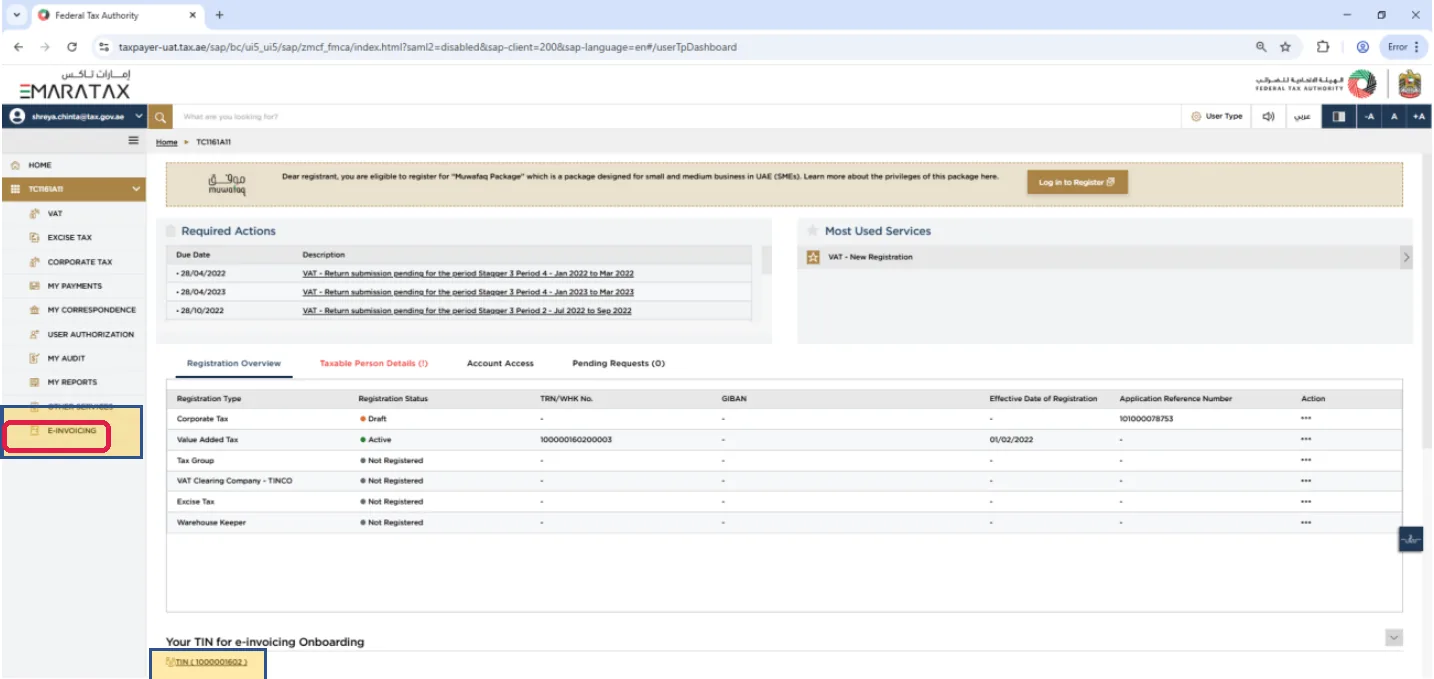
Step 3: Go to E-Invoicing
Click E-Invoicing in the left-hand menu, or click your TIN under Your TIN for e-invoicing Onboarding.
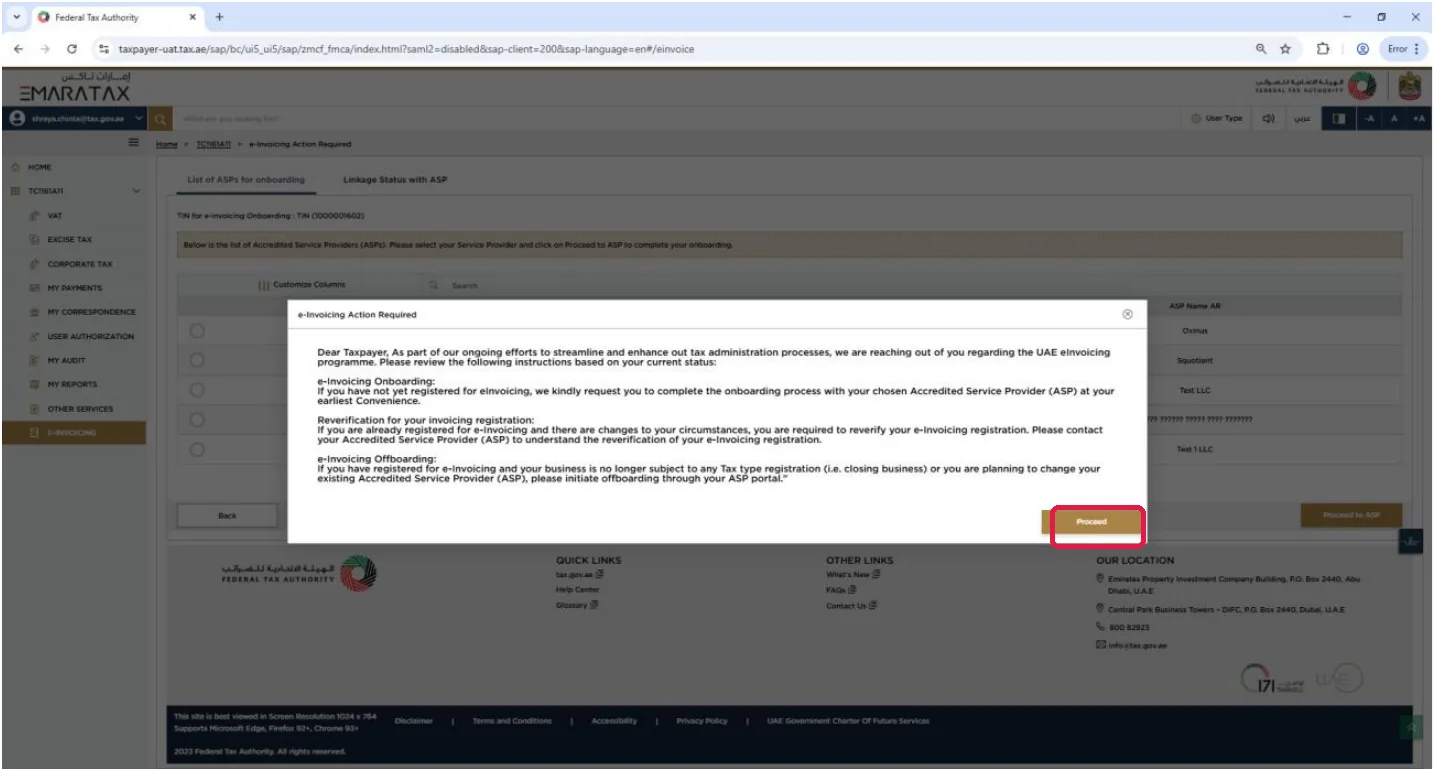
A notice about e-invoicing onboarding appears. Read it and click Proceed.
Step 4: Choose your ASP
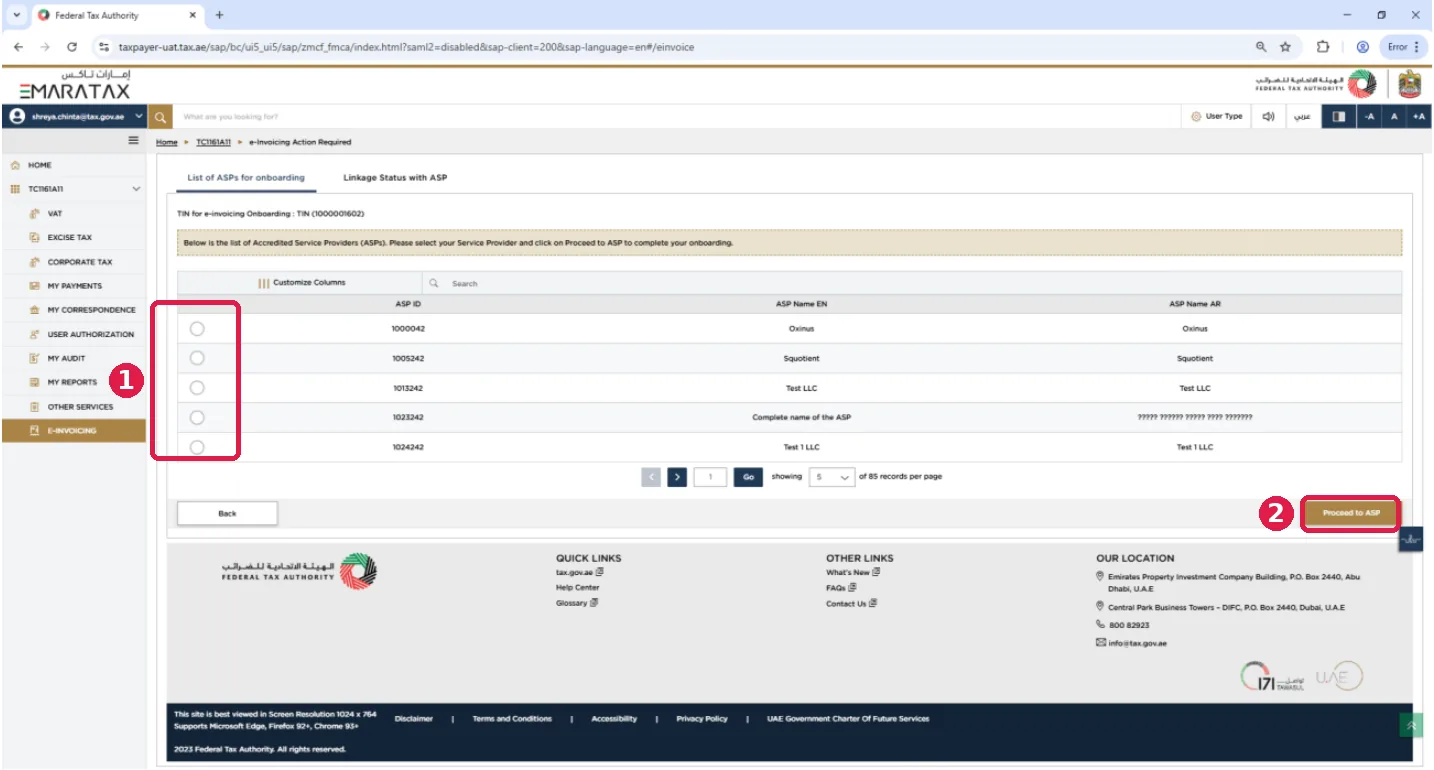
(1) Select your ASP in the list (for example Citytech Software), then (2) click Proceed to ASP.
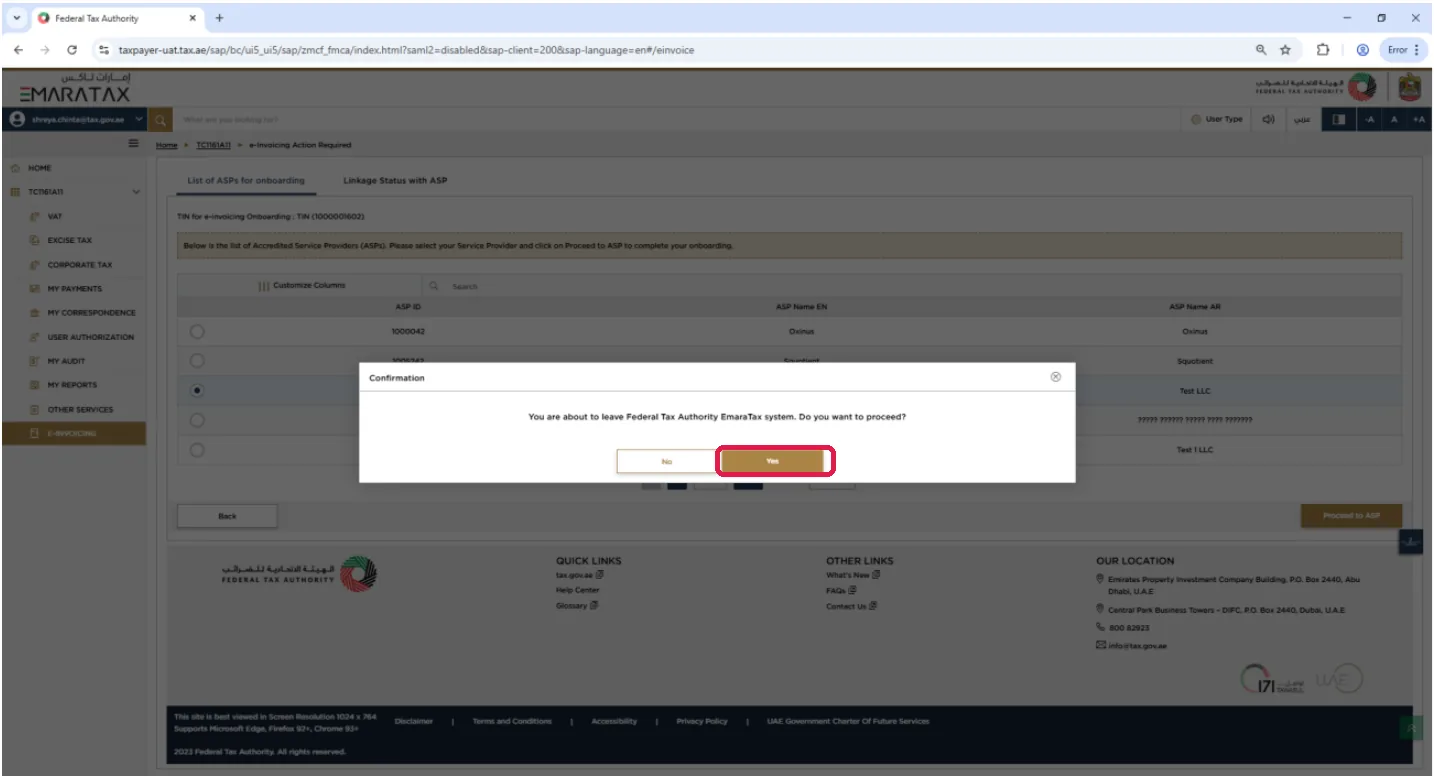
EmaraTax asks whether you want to leave the site. Click Yes. You're taken to your ASP's linking page.
Step 5: Verify your details on the ASP page
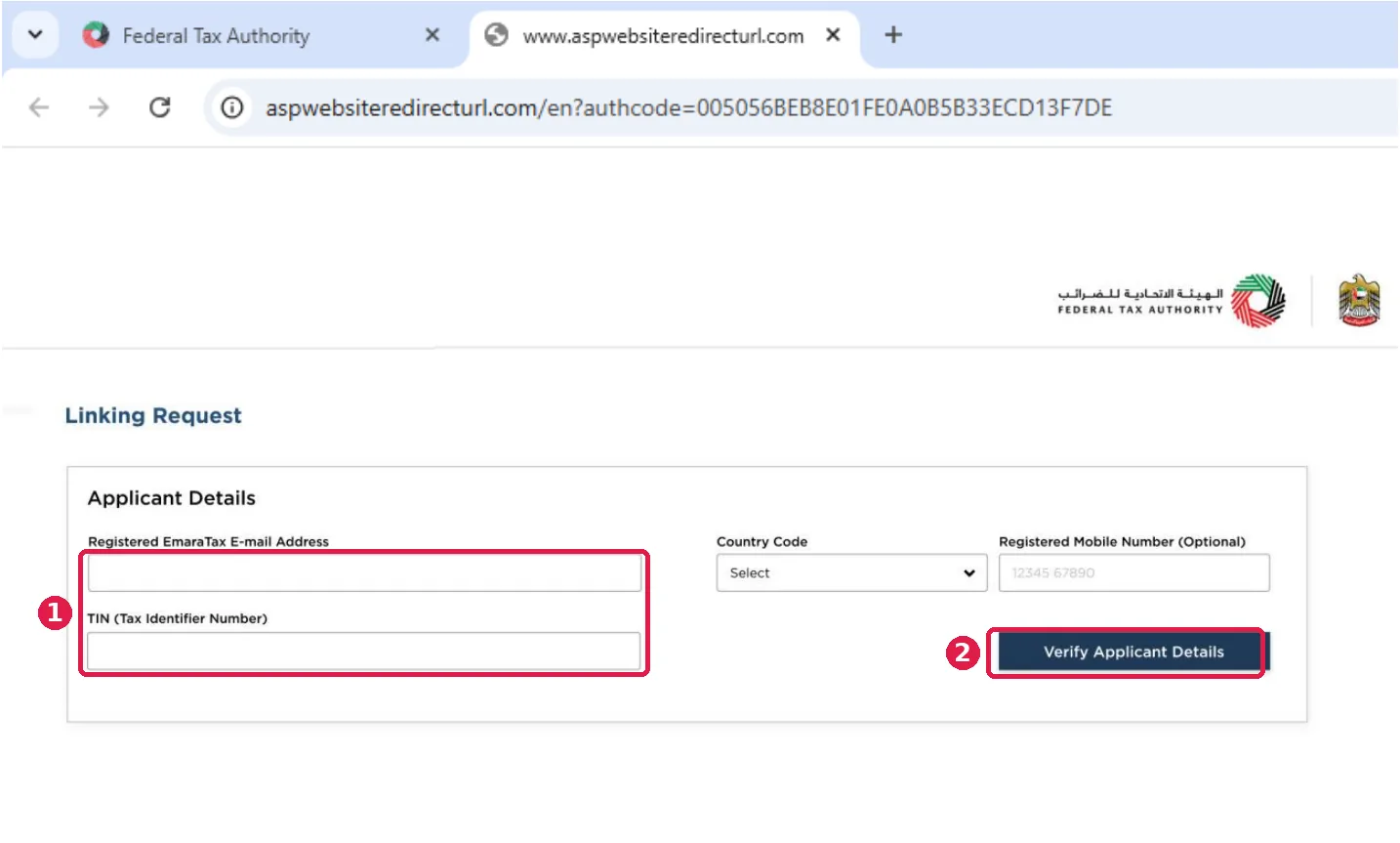
(1) Enter the email linked to the Taxable Person and the TIN. The mobile number is optional. (2) Click Verify Applicant Details.
Step 6: Confirm and submit
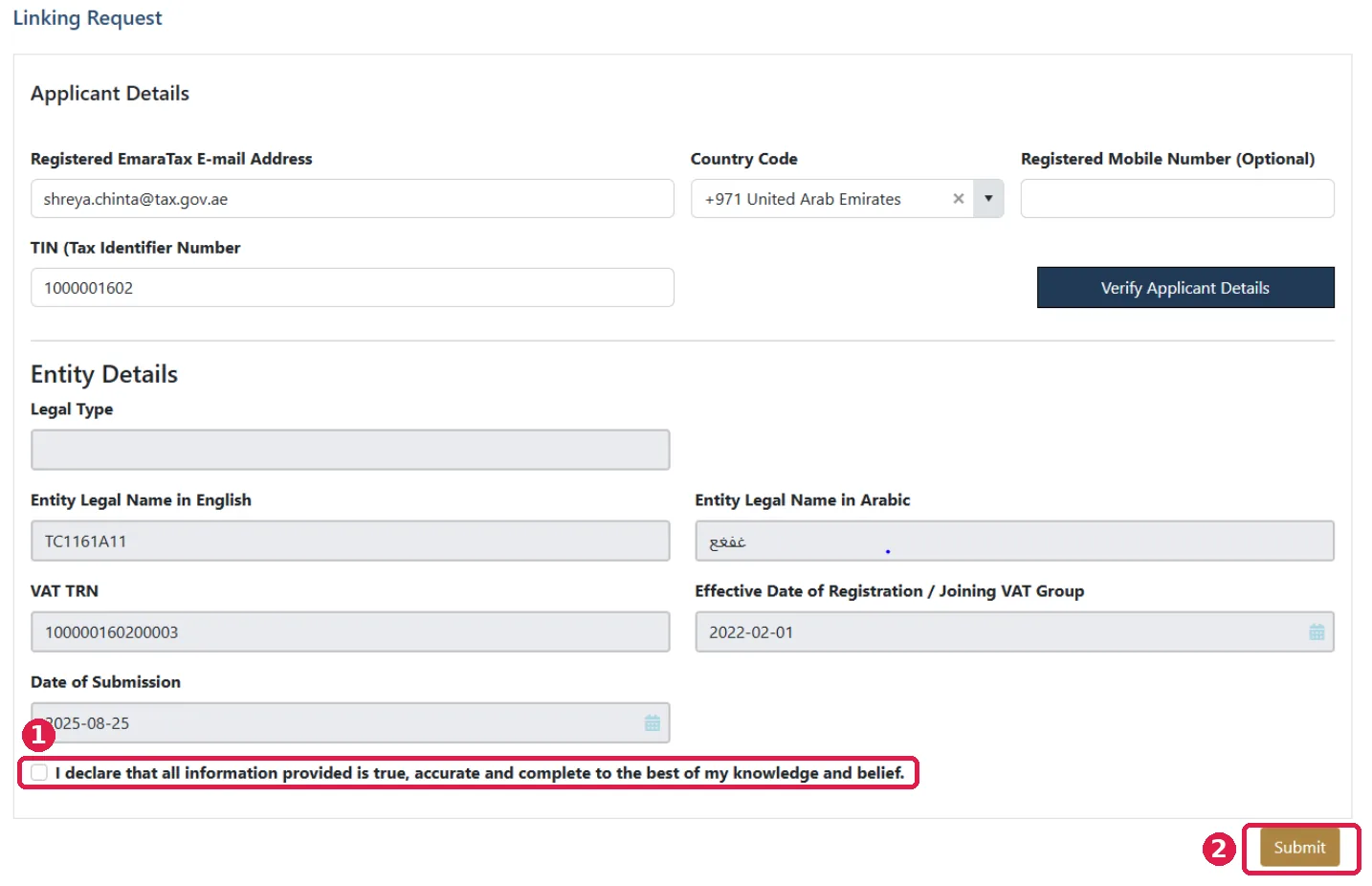
Your entity details come back from EmaraTax and can't be edited. Check them, (1) tick the declaration and (2) click Submit.
The ASP registers you on the Peppol network and sends the result to EmaraTax. Back in EmaraTax, under Linkage Status with ASP, your ASP now shows as Linked.

You're done. Your ASP can now send and receive e-invoices for this entity.
Troubleshooting
| Problem | What it means | What to do |
|---|---|---|
| "Invalid email" when you click Verify | The email doesn't match the one linked to the Taxable Person in EmaraTax. That can be different from the email you log in with. | Use the email linked to the Taxable Person. If you can't find it, or it needs correcting, raise a ticket with FTA Support. |
| TRN not returned, even though it's active | Usually means your registered information in EmaraTax needs checking or correcting. | Review your details in EmaraTax. If needed, submit an Amend Taxable Person (AMTP) application or raise an FTA support ticket. |
| Linking details not showing in EmaraTax | The link didn't come through on the EmaraTax side. | Tell your ASP first. The ASP retries and, if needed, escalates to the FTA with the technical details. |
| Failed because of the "Legal Type" field | The FTA has made Legal Type optional. | Try again. You can leave Legal Type blank. |
Related
- Why you need an ASP and how appointment works
- Reverify your ASP link
- Delink (offboard) your ASP
- How UAE e-invoicing works
Need help? Contact Citytech at einvoicing@citytechme.com. For questions about your EmaraTax account, contact the FTA at e-invoicingsupport@tax.gov.ae.
Source: FTA, "UAE E-invoicing End-User Process for Onboarding, Reverify and Offboarding" v1.2.